
WiFi Lab
RUNNFENG LIMITEDTools
3.918.00 Reviews
- Version
- 1.0.0
- Installs
- 100.00K
- Age Rating
- Everyone
Screenshots
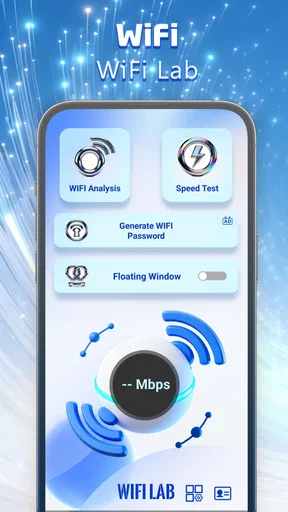
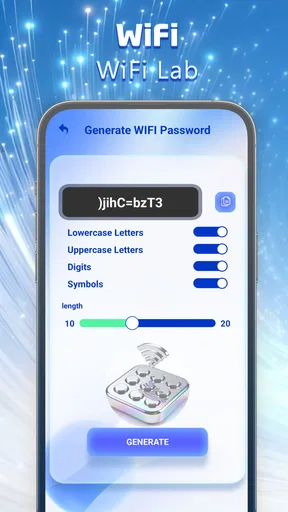
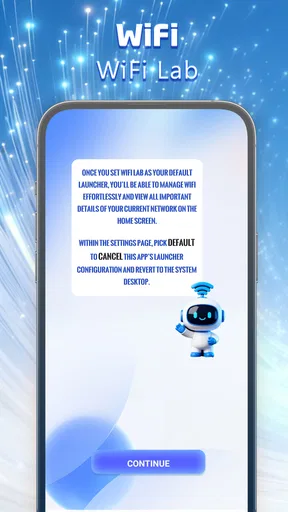
Our Review of WiFi Lab
 Analysis by Appyee
When my Wi-Fi feels slow, the first problem is usually not the connection itself but the lack of a clear explanation. WiFi Lab is a tools app from RUNNFENG LIMITED that aims to make network behavior easier to understand. Its store summary is brief, but the practical idea is straightforward: give you a place to examine your network instead of relying only on guesswork, repeatedly restarting the router, or blaming the phone.
I approached it as an everyday troubleshooting companion rather than a replacement for a router’s administration panel or a full professional network-monitoring suite. That distinction matters. An app like this is most useful when it helps turn a vague complaint—“the internet is bad”—into a more focused question about the connection around you. It is free, rated for Everyone, and available on devices running Android 10 or later, so the barrier to trying it is relatively low.
What WiFi Lab feels like in daily use
The strongest reason to try this app is its focus. It belongs in the tools category, not entertainment or social media, and that changes how I judge it. I do not expect constant engagement or a long list of polished extras. I expect a quick way to inspect a network, understand what may be happening, and decide what to try next.
That makes it a sensible app to keep available for specific moments: moving a router, setting up a new room, checking whether a weak signal is caused by distance, or investigating why one device behaves differently from another. In those situations, the value is not necessarily a dramatic speed boost. The value is better information before I start changing settings or buying equipment.
One useful habit is to check the connection in the place where the problem actually happens. Testing beside the router may produce a reassuring result while a bedroom, office, or balcony remains troublesome. I would use WiFi Lab at the desk where video calls take place, near the television during streaming, and in the area where a phone regularly loses responsiveness. Comparing locations is more meaningful than treating one reading as a verdict on the entire home.
Speed expectations: understanding the difference between fast and usable
A common mistake with network tools is expecting one impressive number to explain everything. In practice, a connection can appear fast during a quiet moment and still feel unreliable when several people are online. I found the app more useful when treating its information as context rather than as a promise of performance.
For example, if browsing feels sluggish, I would first check whether the issue follows the device or stays in one physical area. If only one room is affected, placement and signal conditions become more plausible explanations. If every device struggles at the same time, the router, internet service, or household traffic deserves more attention. This simple comparison prevents the app from becoming a source of unnecessary tinkering.
There is also a difference between download speed and responsiveness. A large file may transfer acceptably while a call, game, or remote-work session still suffers from delays. I would therefore use WiFi Lab as one part of a diagnosis, not as the sole authority. The app can help me understand the network environment, but it cannot make a congested connection magically responsive.
The most useful result is not the highest reading; it is a repeatable pattern. If the same location consistently behaves worse, that tells me more than a single test taken when nobody else is using the network. I recommend checking at different times of day, especially during the hours when the problem is noticeable. That approach gives the app a fair chance to reveal whether the issue is local, temporary, or broader.
What happens during heavy-use moments
Home networks often feel fine until they are busy. Someone starts a high-resolution stream, another person joins a meeting, cloud backups run in the background, and suddenly a previously acceptable connection feels unstable. WiFi Lab is useful here as an observation tool because I can compare a quiet baseline with the exact moment the household becomes active.
I would begin with a check when the network is mostly idle, then repeat it while the television is streaming or a large download is underway. The comparison can show whether the complaint is related to demand rather than distance. It also helps me avoid blaming the phone when the same slowdown appears across several devices.
A practical scenario is a small apartment where the living-room television works well, but a laptop in the next room struggles during an evening call. I would inspect the laptop’s location first, then compare it with the living-room connection while the television is active. If the problem appears only during simultaneous use, the next step might be reducing unnecessary traffic or reviewing the router’s own controls rather than repeatedly reinstalling apps.
This is one area where expectations should remain realistic. A network utility can help identify a pattern, but it does not automatically prioritize traffic, upgrade an internet plan, reposition walls, or replace aging hardware. If the household regularly reaches the limits of its connection, a router-management tool or service-provider support may be more appropriate for the actual fix.
Reliability matters more than one successful check
I judge a network app by how useful it remains after the first inspection. Anyone can open a tool when the connection is behaving perfectly. The real test is whether it helps me compare conditions without encouraging false certainty. With WiFi Lab, I would use short, repeated checks instead of drawing conclusions from one session.
For troubleshooting, I like to keep the process simple. I would note the room, approximate time, what other devices are doing, and whether the issue is slow loading, interruptions, or delayed responses. Then I would repeat the check after moving closer to the router or temporarily reducing household activity. This turns the app into part of a small experiment rather than a button I press whenever I feel annoyed.
That workflow also makes recovery easier. If a connection becomes poor, I can compare the current state with a known better location and decide whether moving temporarily is enough. If the problem persists everywhere, I have stronger grounds to restart equipment, inspect the router, or contact the provider. The app does not need to solve every fault to be useful; it needs to help me choose the next sensible action.
I would still avoid treating a normal result as proof that everything is healthy. A brief check may not capture intermittent dropouts, congestion that appears later, or problems affecting only a particular service. Conversely, one bad result may reflect a temporary burst of activity. Reliability comes from repeated observations, and that is where the user’s method matters as much as the app.
Device constraints and practical compatibility
WiFi Lab currently uses version 1.0.0 and requires Android 10 or newer. That is important for anyone using an older phone or maintaining a spare device for network troubleshooting. The app is not a universal answer across every handset, so I would check compatibility before planning to use an old tablet as a permanent monitoring screen.
The Android requirement is also relevant when diagnosing a problem on another device. If an older phone is the one experiencing trouble, a newer compatible phone may show a different result because of its hardware, location, or wireless behavior. I would use the app on the device and in the place that matter most, rather than assuming one phone represents the entire household.
Resource demands are difficult to judge from the store information alone, so I would not promise that it consumes a particular amount of battery, memory, or mobile data. My practical advice is to use it when investigating a problem and close it afterward if you do not need ongoing observation. That keeps the workflow intentional and avoids turning a troubleshooting utility into another app running without a clear purpose.
The Everyone content rating makes it approachable for a family setting. Still, simple presentation should not be confused with professional depth. A home user who wants understandable network checks may appreciate that focus, while an administrator responsible for several access points, detailed logs, or long-term monitoring will probably need a more specialized solution.
Where it fits beside familiar alternatives
Most people already have several ways to investigate a connection. The router’s own application may offer device lists and configuration controls. The phone’s system settings can show the connected network. A browser-based speed test can provide a quick performance snapshot, and the internet provider may offer diagnostic tools. WiFi Lab makes the most sense in the space between those options: more purposeful than casually opening settings, but less intimidating than a professional network toolkit.
Compared with a router-management app, its likely advantage is the perspective from the client device and its actual location. Router software can tell me what the network is doing centrally, but it may not explain why a laptop in one corner of the home behaves differently from a phone beside the access point. Compared with a simple speed-test website, a dedicated utility feels better suited to repeated checks during troubleshooting rather than a single curiosity-driven result.
The trade-off is that I would not choose it as my only tool for changing network configuration or managing connected devices. If I need to update router settings, create a guest network, control access, or inspect provider-side faults, the router or provider tools are more direct. If I need advanced diagnostics, a specialist app may offer deeper information. WiFi Lab is best when clarity and convenience matter more than exhaustive control.
That positioning also explains why the app may appeal to beginners. I can use it without first learning every networking term, then decide whether the issue deserves more advanced investigation. For experienced users, it may be a quick first check before opening more technical utilities. In both cases, its usefulness depends on whether the information leads to a practical decision.
Three workflows that make the app more useful
My first recommended workflow is a room-by-room comparison. I would check the main work area, a location close to the router, and the room where the connection feels weakest. Keep the phone orientation and general conditions similar, then compare the pattern. This is more actionable than testing randomly because it can point toward placement, interference, or the need for better coverage.
The second is a quiet-versus-busy comparison. Check once when the household is inactive and again while the usual streaming, calls, gaming, or downloads are happening. If the difference is large, the problem may be capacity or congestion. If both checks are poor only in one room, coverage deserves attention first. This prevents an expensive upgrade from being the automatic response.
The third is a before-and-after recovery check. After restarting the router, moving closer, pausing a heavy activity, or changing one setting in the router’s own controls, check again under similar conditions. Change one thing at a time. Otherwise, I cannot tell which action helped, and I may restore a problem without realizing it.
These workflows also reveal a limitation: the app cannot replace disciplined observation. It is easy to collect readings without recording where they came from or what the network was doing. I would keep brief notes, especially if I plan to contact an internet provider. A clear description of when and where the issue appears is far more useful than saying only that the Wi-Fi “feels bad.”
Who should use it, and who should skip it
I would recommend WiFi Lab to someone who wants a free, approachable way to investigate home-network behavior on a compatible Android phone. It is a good fit for people moving into a new home, arranging a work-from-home space, checking a suspected weak area, or trying to understand whether several devices are affected at once.
It may also suit families that need a shared troubleshooting routine. Rather than having everyone restart the router whenever a video pauses, one person can compare locations and usage conditions. That will not solve every problem, but it can reduce random changes and make conversations with a provider or technician more precise.
I would skip it if I need advanced enterprise monitoring, detailed historical reporting, direct router administration, or a guaranteed fix for poor broadband service. I would also look elsewhere if my main concern is cellular data rather than Wi-Fi, because a Wi-Fi-focused tool is not the right lens for every connectivity problem.
The app has attracted over one hundred thousand installs, with a 3.9 average from 215 ratings and 18 written reviews. I read that as evidence of real interest but not a reason to assume it will fit every setup. The rating suggests a mixed experience is possible, so I would approach it as a practical utility to evaluate on my own device rather than as an unquestionable authority.
My performance verdict
WiFi Lab works best when I use it to investigate patterns: where the connection weakens, when household activity affects it, and whether a simple change improves the situation. Its speed value comes from helping me reach a diagnosis faster, not from making the network itself faster. Its stability value comes from repeatable comparisons, not from one reassuring check. Its recovery value comes from guiding the next step after a failure.
The free price makes experimentation easy, and the Everyone rating keeps the app approachable for general household use. The current version is 1.0.0, so I would keep expectations measured and judge it by whether it answers my immediate troubleshooting question. For a person who wants a clear starting point, that can be enough.
My honest recommendation is to install it when you have a specific network question, then use a simple, repeatable workflow rather than opening it aimlessly. If it helps you separate a room problem from a whole-home problem, or congestion from a device issue, it has done something genuinely useful. If you need configuration controls, deep diagnostics, or long-term professional monitoring, choose a more specialized alternative. WiFi Lab is most valuable as a calm first step between frustration and a sensible fix.
RUNNFENG LIMITED has kept the concept focused around understanding the network, and that focus is its main appeal. I would keep it available for those occasional moments when the connection behaves strangely, while remembering that good troubleshooting depends on context, repetition, and knowing when the problem belongs to the router or provider instead of the phone.
Verdict
Strengths of WiFi Lab
- Simple interface makes Wi-Fi testing easy for beginners.
- Useful tools for checking signal strength around your location.
- Helps identify nearby networks and potential connection issues.
- Lightweight app with quick results on most compatible devices.
- Can support basic troubleshooting without extra hardware.
Limitations of WiFi Lab
- Some features may require location permissions to scan networks.
- Results can vary depending on device hardware and Android version.
- Advanced users may find the diagnostic tools too limited.
- Wi-Fi scans can be less accurate in crowded urban areas.
- May include ads or optional paid features in the free version.
Similar Picks in This Category
View All
Google LLC4.0

Gboard - the Google Keyboard
Google LLC4.5

Google Play services
Google LLC4.3

Google Play Store
Google LLC4.9

Files by Google
Google LLC4.5

SHAREit: Transfer, Share Files
Smart Media4U Technology Pte.Ltd.4.3
Frequently Asked Questions
What is WiFi Lab, and what can I use it for?
WiFi Lab is a network utility app designed to help you inspect and understand nearby wireless connections. Depending on your device and the app version, it may provide details such as network names, signal strength, channel information, connection status, and basic diagnostic tools. It is mainly useful for checking your own Wi-Fi environment, identifying weak coverage areas, and troubleshooting everyday connectivity problems.
Is WiFi Lab safe to use on my Android or iOS device?
WiFi Lab can generally be used safely when downloaded from an official app store and kept updated. However, users should review the permissions requested during installation, especially access to nearby devices, location, or local network information. These permissions may be required for Wi-Fi scanning features, but you should avoid unofficial APK files and be cautious if the app requests access unrelated to network analysis.
Does WiFi Lab require location or local network permission?
Wi-Fi scanning can require additional permissions because mobile operating systems restrict access to nearby network information. On some Android versions, location services must be enabled before wireless networks can be detected. On iOS, the app may need Local Network access for certain functions. If scanning does not work, check the app’s permission settings and confirm that Wi-Fi and location-related services are enabled.
Can WiFi Lab improve my internet speed or reveal saved Wi-Fi passwords?
WiFi Lab may help you diagnose conditions that affect performance, such as weak signal, crowded channels, or unstable connections, but it cannot magically increase the speed provided by your router or internet service. Users should also be realistic about password-related features. Modern Android and iOS security restrictions generally prevent ordinary apps from revealing saved Wi-Fi passwords unless the device and operating system explicitly support that function.
Is WiFi Lab free, and are there any limitations before downloading it?
The availability of free features, advertisements, subscriptions, or in-app purchases can vary by platform and app version. Before downloading, check the official store listing for the current pricing model, supported operating systems, developer information, and recent user reviews. Also confirm that your phone is compatible and has enough storage. Some advanced diagnostic or analysis tools may be restricted to a premium version.
